Editor
The editor is the main input for Logic Studio. Type a boolean or predicate expression and all analysis panels update live.
Overview
Enter your expression in the syntax-highlighted editor. It accepts a multi-line logic program: either a single unnamed expression or named bindings separated by semicolons.
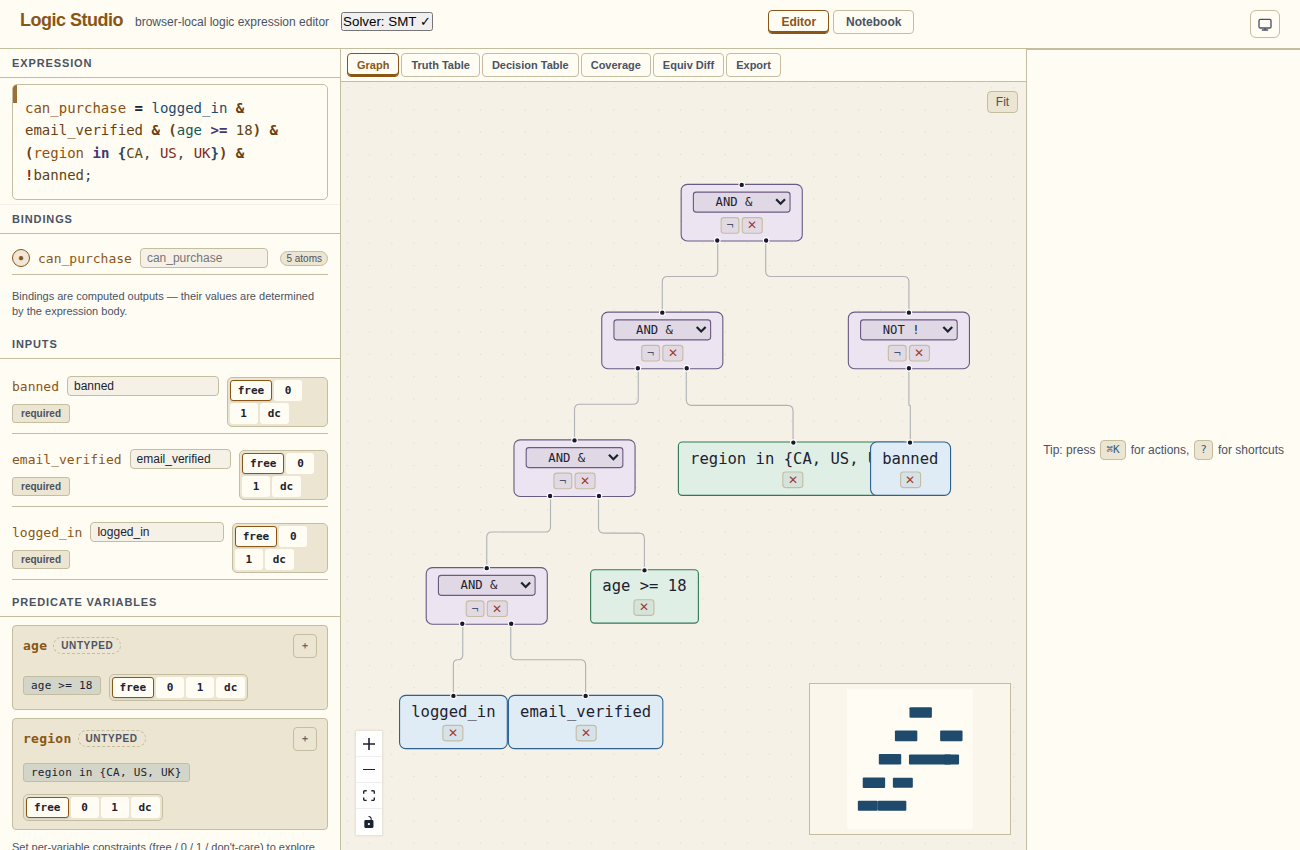
Parsing happens on every keystroke. A red border and error message below the editor indicates a parse error.
Syntax
The expression language is a superset of standard propositional logic:
# Unnamed expression
(A & B) | !C

# Named bindings (end each with ;)
F = A & B;
G = F | !C;

# Predicate expression
can_purchase = logged_in & (age >= 18) & (region in {CA, US, UK});
Atoms & operators
Variables
Any identifier that is not a keyword is a boolean variable: A, user_active, x1. Variable names are case-sensitive.
Literals
Boolean constants: true, 1 (always true), false, 0 (always false).
Boolean operators
| Syntax | Meaning |
|---|---|
! or NOT | Logical NOT (prefix) |
& or AND | Logical AND |
| or OR | Logical OR |
^ or XOR | Exclusive OR |
-> or IMPLIES | Material implication (A→B ≡ ¬A∨B) |
<-> or IFF | Biconditional (A↔B) |
Operator precedence (highest to lowest): !, &, ^, |, ->, <->. Use parentheses to override.
Binding syntax
When your program has more than one expression, name them:
F = A & B;
G = F | !C;
H = G -> D;
Each binding name is defined exactly once and can be referenced in later bindings. Cyclic references are not supported. See Bindings for how to work with multi-binding programs.
Inputs panel
The Inputs section appears below the Bindings panel. It lists every free boolean variable in the expression. For each variable you can set a constraint:
- free — variable can take any value (default). The truth table explores both 0 and 1.
- 0 — constrain the variable to false. The Result summary uses only assignments where this variable is false.
- 1 — constrain the variable to true.
- dc — don't-care. Treat this variable as a don't-care in the constrained Result summary. Use the
?suffix for canonical simplification; see Don't-cares.
Constraints are visible as coloured pills next to each variable name. Display names can be edited by clicking the text field next to the variable identifier.
Don't-cares
A don't-care variable is one where you don't care about the output for certain input combinations. Use the ? suffix to mark a variable for canonical simplification:
F = A & B?;This tells the simplifier it may treat B as either 0 or 1 in any row, allowing a potentially smaller result. Don't-cares appear in the truth table as italicised rows. The simplifier won't produce an output that's incorrect for the non-don't-care rows.
⌘K command palette
Press ⌘K (or Ctrl+K) from anywhere to open the command palette. Type to search commands, navigate with ↑↓, and press Enter to run the selected command.
The palette includes:
- Apply simplified expression
- Toggle theme
- Switch to Editor / Notebook view
- Set active binding (one entry per named binding)
Press ? (outside a text input) to open the keyboard shortcut help sheet.
Keyboard shortcuts
| Action | Shortcut |
|---|---|
| Open command palette | ⌘K |
| Apply simplified result | ⌘↵ |
| Toggle theme | ⌘/ |
| Focus editor | g then e |
| Switch to Editor | g then r |
| Switch to Notebook | g then n |
| Graph tab | 1 |
| Truth Table tab | 2 |
| Decision Table tab | 3 |
| Coverage tab | 4 |
| Equiv Diff tab | 5 |
| Export tab | 6 |
| Shortcut help | ? |
| Close menu / dismiss | Esc |
Examples
The intro cover (shown on first visit, or via About → "Show intro again") offers example buttons. Choosing an example loads the corresponding source into the editor. There is also a "More examples →" button that opens a drawer with the full example library organised by category.
Examples cover: simple gates, De Morgan, XOR, named bindings, implication chains, predicates, feature flags, and multi-binding pipelines.