Export & Sharing
How to share a worksheet, export the graph, and get code output from your expression.
Sharing via URL
Use a share link to open the same expression and its annotations. To share:
- Click Share, or press ⌘K or Ctrl+K and search "Share".
- The Share panel shows the link for the current worksheet.
- Click Copy to copy the URL to the clipboard.
- Send the URL to anyone. When they open it, Logic Studio will load with the same expression.
Graph export (PNG / SVG)
The Export tab provides buttons to download the graph as a PNG or SVG image:
- PNG: rasterised at screen resolution. Suitable for documents and presentations.
- SVG: vector. Preserves text and edges at any zoom level. The exported SVG embeds the current theme colours.
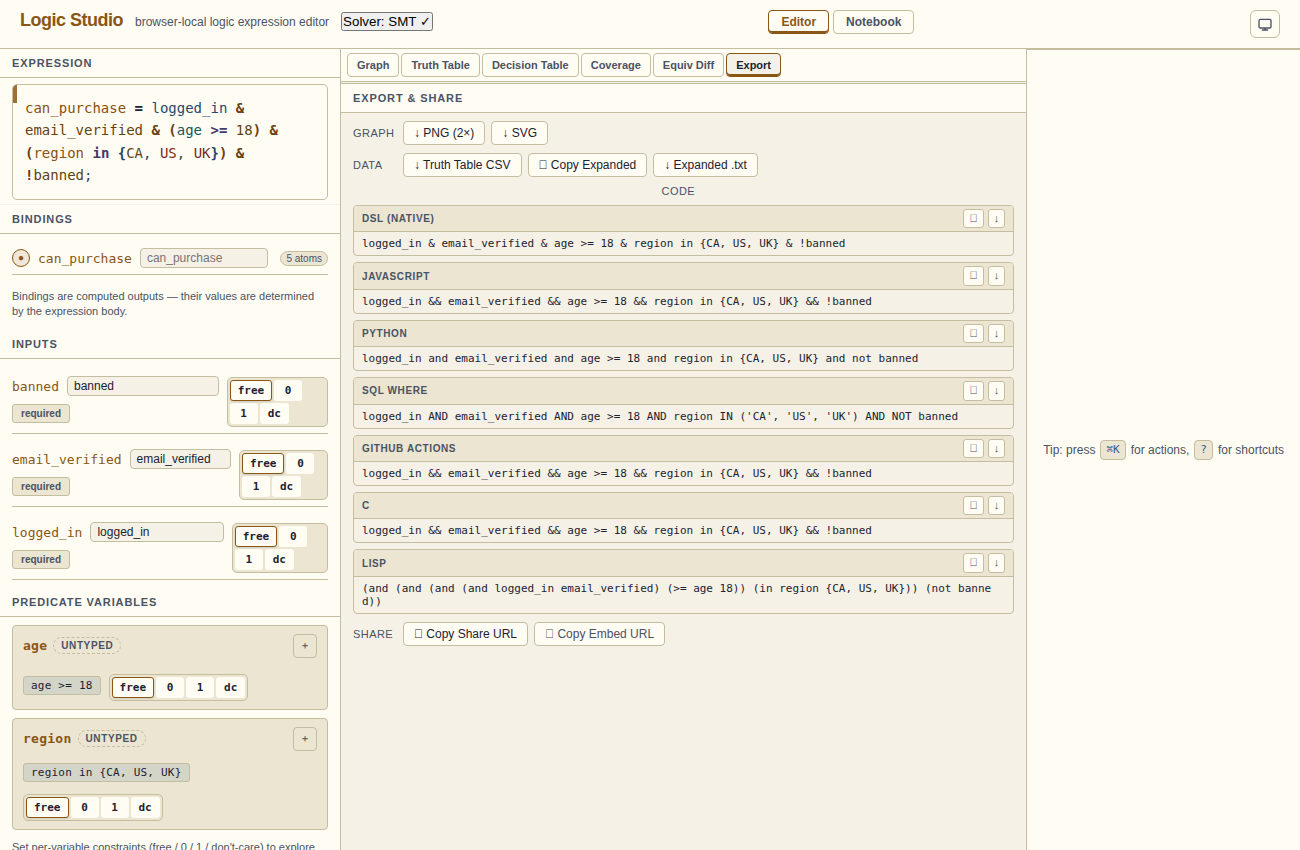
Code export
The Export panel (and the Import/Export section in the left panel) lets you export the expression as executable code in several languages:
| Language | Output |
|---|---|
| JavaScript | A function() that returns the boolean value |
| Python | A def() that returns the boolean value |
| C | A bool function or macro |
| SQL | A WHERE clause fragment |
| GitHub Actions | A if: expression for workflow conditions |
| Lisp | An S-expression |
Importing from code
The Import/Export section in the left panel also accepts code paste for import. Select the source language, paste the code, and click Import. Logic Studio attempts to parse the code and load it as a Logic Studio expression.
Import support is best-effort. Supported inputs: JavaScript boolean expressions, Python boolean expressions, GitHub Actions condition strings, SQL WHERE clause fragments.
Notebook
The Notebook view is a lightweight saved expressions store. Click Save in the Notebook to record the current expression with a name and optional tags and notes. Saved entries can be loaded, searched, and deleted.
Notebook entries stay in this browser. Export entries you want to retain before clearing browser data.